Post #8 Automatically Running ABAQUS Jobs
Updated: Jul 29
A method for running a series of jobs that leaves the user interface free for other activities. Unlike the command line batch script though it leaves the CAE license with the current user.
Two essential modern truths:
Machines are cheap, good people are expensive.
Time is money.
Maximise your people’s time and save money by sweating the machines, they will not complain.
A lot of FEA models take a while to run. If you set a job to run at 5pm and go home and it finishes at 11pm, are you going to log in to the office and set another job to run over night? I hope for your sanity and good health the answer is no. So, you would like to set a series of jobs to run, in sequence, maximising the use of your available computing power, never giving the machine a rest.
The easy answer is a script that just calls job.submit() on a list of jobs. This works. Sort of. It also locks your CAE window until all the jobs are done. Which is not helpful! What you need is a script that can run jobs in the background and let you get on with something else with that expensive CAE seat. The method is to use a callback function that is triggered by the message queue.
Every job that runs pumps out a variety of messages at different stages in its life. The ones that matter in this case are the ones that are sent around when a job finishes normally, JOB_COMPLETED, or stops early, JOB_ABORTED. Abaqus has a service within it called monitorManager that listens to the messages, it also allows us to add custom functions, callback functions, to respond to those messages. The message queue also allows us to pass any amount of custom data to the callback function. In this way a list of jobs and a marker indicating the current job can be held in memory while the jobs execute. Of course, there are other ways that the job list could be stored, in a file for instance, but this method is completely self-contained. A weakness is that you cannot update the list once execution has started, without killing off the remaining jobs one at a time.

The execution structure is as shown in the diagram above. The callback function must be registered with the messaging system via monitorManager before a job is submitted. The callback function is specific to a particular job and will call the handling function whenever that job creates a message, passing it userdata, which is the list of jobs and the current job’s index in that list. The job is then submitted. When it terminates the callback for the previous job is cleared and a new job is submitted until the end of the list of jobs is reached.
The example that follows has a further useful addition – the user can select the order of execution of the jobs that are to be run. In keeping with my mantra of keeping the GUI as simple as possible this version makes use of getInputs to collect the user’s preferred solution order. The example is set up as a kernel plugin, add it in a folder in your plugins directory. A zip file containing the whole plugin can be obtained for free by registering and clicking on the download button above.
RunJobs
The code starts by offering up a list of all the jobs in the current database and asking the user to choose which ones to execute and in which order via GetJobNames. The sorted list of job names is then passed to SubmitJob, with an index of zero to start the first job running.

GetJobNames
This function loops until valid selections are made. More checks could be applied to ensure that the user has put valid selections in.
Jobs are placed in order by entering a number in the appropriate box in the dialog, the numbers do not need to be sequential. If they are not unique the dialog will be presented again with the previous selections showing. The list comprehensions remove all the unwanted jobs, marked with ‘N’ and sort the remainder. The sorted list of jobs is returned, or an empty list if the user cancels out.

Banner
It is always useful to show that your script has started, especially if it produces a lot of intermediate output. This function just summarises the user choices in the message window. As each job starts a time stamp will be written to inform the user how long jobs are taking.

SubmitJob
The job to run is pulled from the job list, then the job list and the current index are bundled up into userdata. A callback function, onMessage, is attached to the current job. Whenever the job produces any kind of message this function will be called to check for appropriate actions. The job is then set running.

OnMessage
The callback receives all the messages generated by the job but only acts on ones associated with the job ending. When the current job finishes it updates the index, extracts the job list from the previous user data, removes the current callback, i.e. itself, and launches SubmitJob again with the new index value pointing at the next job in the list.

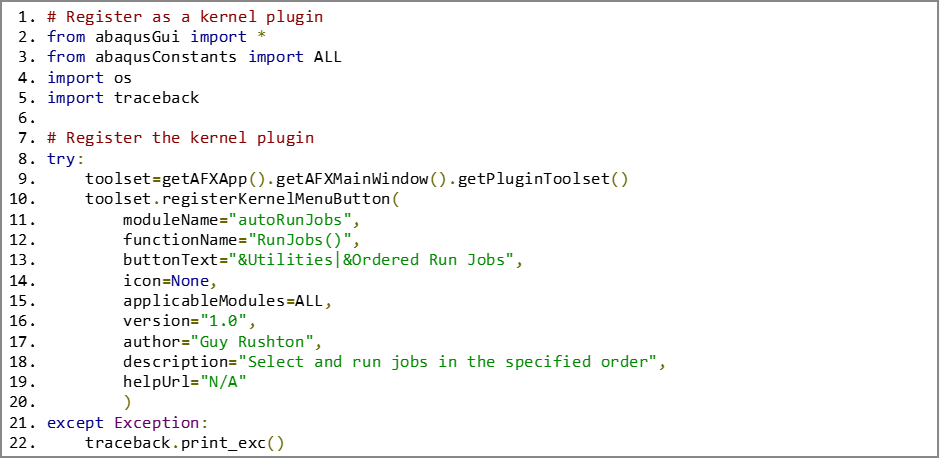
Kernel Plugin
Just to make this easier to use this all bundled up as a kernel script, launched from the plugins menu entry Utilities -> Ordered Run Jobs, change this to suit your own taste.
I hope that this utility is helpful. It has been pointed out elsewhere that it does leave the CAE seat in use with the current user. The alternative approach is a command line batch file which does not need the CAE seat.
I find that this approach is more user friendly, you don't have to type out long file paths and it is all very point and click. You also do not need to learn to batch script or work at the command line level, which arguably we all should. It also suits my use case since I am usually seeking to run jobs in the background while getting on with preparing another model. To each their own.


Comments