Post #1 Interactive Graphics on ABAQUS Dialogs... or Fred Is Dead
Updated: Aug 18, 2025

ABAQUS plugins are very useful. They can save a huge amount of time in model preparation, processing and reporting. Often, preliminary calculations can be made before the FEA model is run, based on the user input to the plugin dialog, preventing wasted effort, for example with an incorrect load case. Making preliminary calculations part of your plugin is a good idea, it means that you only have to check the method once. Sometimes a diagram that explains clearly how the model is being set up would be very helpful to the user. The challenge is how to display such useful information on your dialog since the range of output options is severely limited.
Clearly textual information can be displayed in read only text boxes or in labels. But what about sketches and diagrams? A label can accept an image file via the icon option. So, where a fixed generic diagram is needed, the icon can be loaded with a prepared image. With a little care the icon can be reloaded while the dialog is running. Therefore, a few cases can be covered by creating a small number of icon images and loading the appropriate one.
What to do when the dialog allows the user to make a lot of changes or the information from preliminary calculations is more complex? The Fred Is Dead example below shows an ABAQUS dialog box where the user can configure the dimensions of the stick figure and also run through each step of the animation by dragging the slider. There are many thousands of potential sizes and shapes of figure in a range of poses. Clearly this impossible to cover using pre-created images.

The answer is to make use of Matplotlib, which is bundled with the ABAQUS python installation. You can plot complex information easily, or as in this case, create diagrams. Matplotlib normally generates a plot to a window, which can be interactive. This may be appropriate to your needs, but the window must be closed before the script can continue. Also, if your plugin is complex you may want diagrams in multiple places to be updated and retained for reference. In either case the separate window is not a good solution.
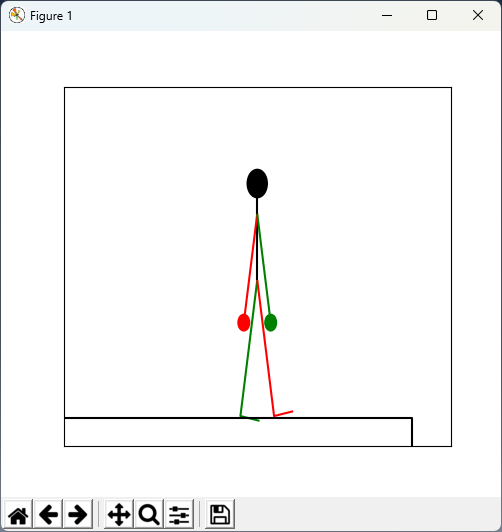
Matplotlib can also save to a file. It will do this without creating a window and without prompting the user if a suitable file location is specified. This means that an image file can be created on the fly, as for the Fred Is Dead example, which can then be loaded into a label, replacing a previous image.
The key steps for the plugin are:
Have some controls that generate values used by a kernel script.
Use processUpdates() in the dialog to capture that the controls have changed and launch the kernel script.
The kernel script generates an image file from the data to a fixed location - ideally within the plugin's installation folder.
A new icon is created from the image file and then registered with the GUI using its create() member function. Without the create() step the new icon will not be visible.
The old icon is removed. It is vital to use the icon's destroy() member function to do this.
The new icon is loaded into the label.
A small time delay may be necessary for this updating process, it can get out of synch and cause ABAQUS to crash.
The processUpdates code for the Fred Is Dead example is given below. If you want the complete plugin code click the Download button and join the site, it is free and you will not be loaded with spam.


Comments